

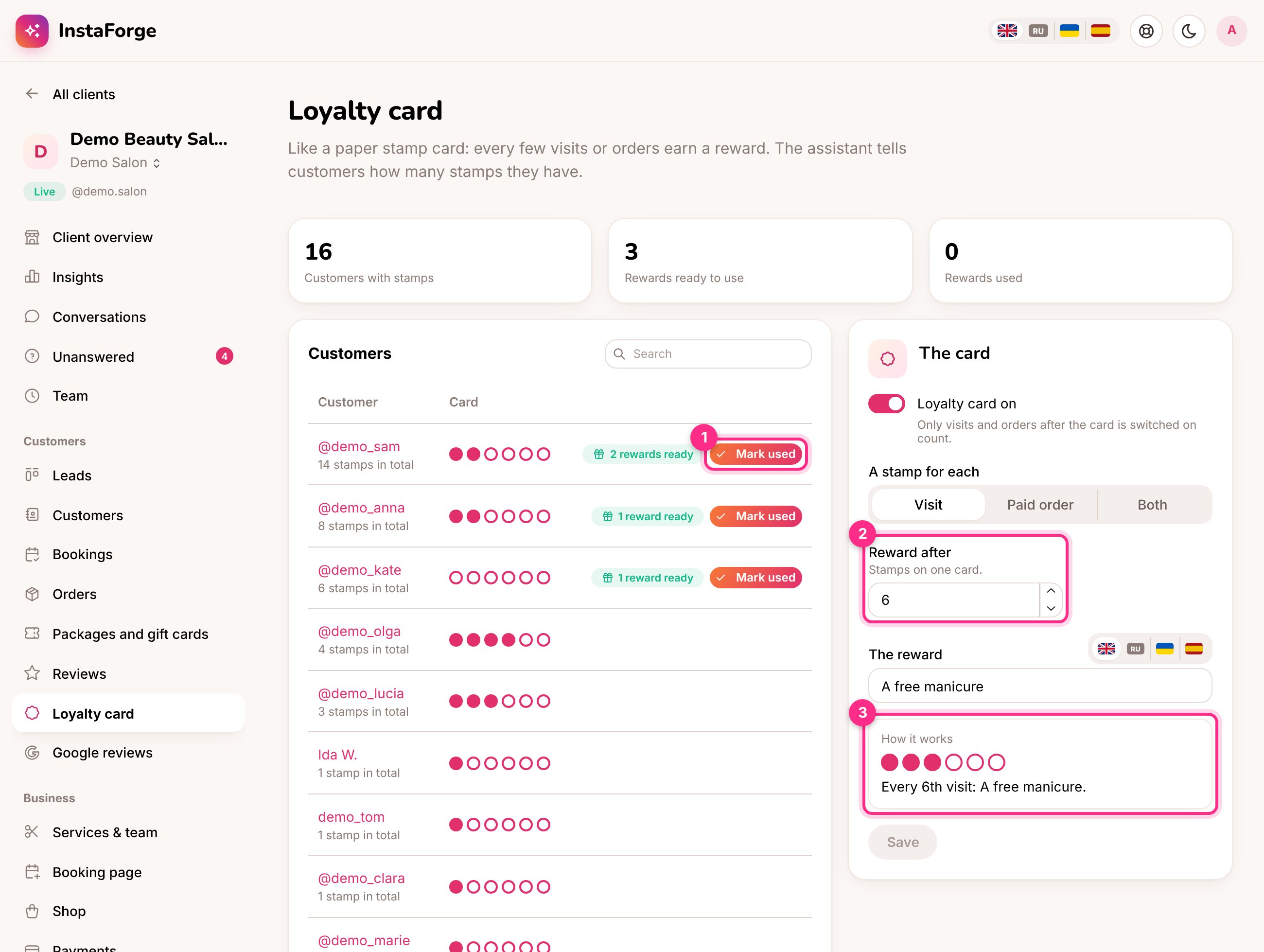
The loyalty card: mark a reward used (1), how many stamps make a card (2), and what customers see (3)
Set it up
Open Customers → Loyalty card in the assistant’s menu (admins and editors).1
Choose what earns a stamp
A visit (an appointment that wasn’t cancelled or marked as a no-show, once its time has passed), a paid order from the shop, or both.
2
Choose how many stamps make a card
For example 6 (2). From 2 to 50.
3
Write the reward
For example “A free manicure”, in each language your customers write in.
4
Switch it on and save
Only visits and orders from that day on count, so nobody starts with a full card.
What customers get
The assistant knows each customer’s card. When someone asks “how many stamps do I have?” it answers, and when a reward is ready it mentions it at a fitting moment, for example while they book their next visit.Give a reward
The list shows everyone with stamps, with a row of stamps for the current card. Customers with a full card are at the top, marked reward ready. When the customer gets their reward, click Mark used (1). One full card is taken off, and the stamps they collected on top of it stay. Business owners can do this too from their portal, for example at the counter, as long as the portal shows them Customers.What if a visit is cancelled or the person didn't come?
What if a visit is cancelled or the person didn't come?
It doesn’t count. Appointments count once their time has passed, unless they were cancelled or marked as a no-show.
What happens if I switch the card off?
What happens if I switch the card off?
The assistant stops mentioning it and the page shows the card is off. Customers keep their stamps for when it’s switched back on.
Can the platform owner turn it off?
Can the platform owner turn it off?
Yes, Loyalty card is one of the features the platform owner can turn off per agency.
Can an AI agent manage the card?
Can an AI agent manage the card?
Yes. A connected AI agent can show who has a reward ready, mark one used, and change the card.