

What belongs to the client is shared by all of its assistants: change the opening hours or a service on one assistant and the others use it too.
The clients list
Clients in the menu lists every business you work for, with its assistants, their Instagram accounts and whether they’re live.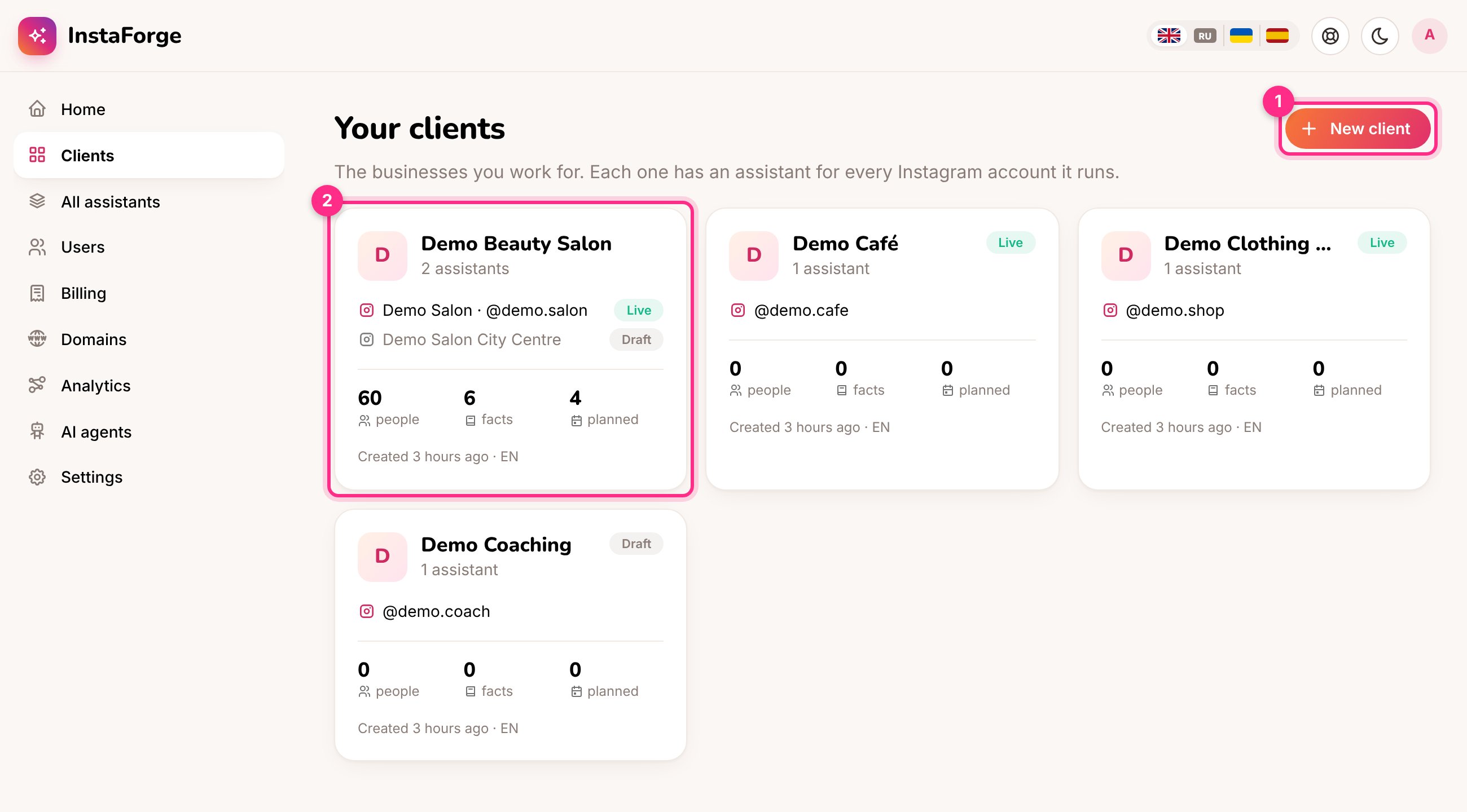
The clients list: add a client (1), a client with two assistants (2)
1
Click New client
Click New client (1).
2
Name the business and its first assistant
Type the business name customers know. The assistant gets the same name; change it if you like, only your team sees it. Pick the main language and a template, and click Create client.
A client’s page
Click a client on the list to open its page.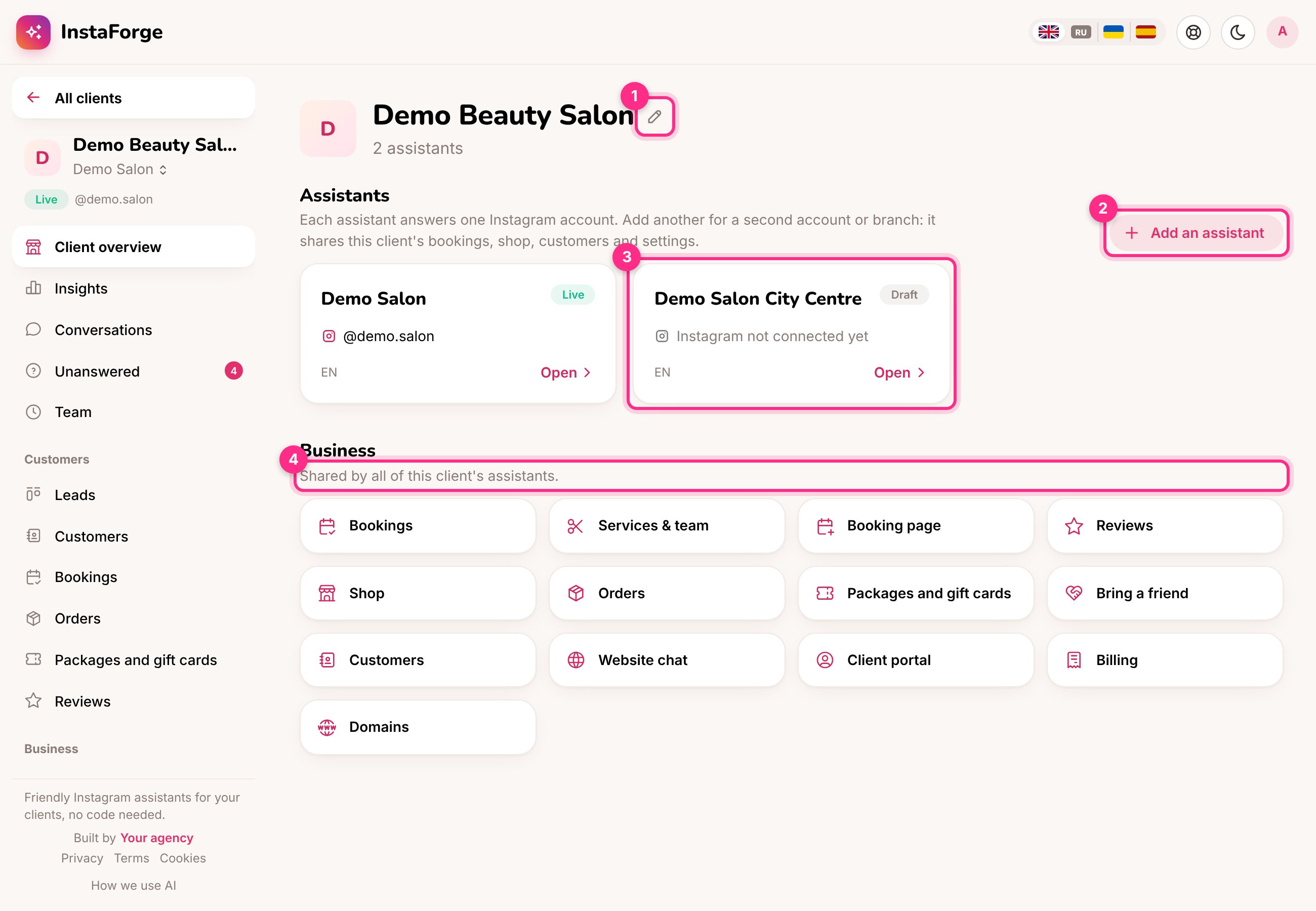
A client's page: rename the client (1), add an assistant (2), one of its assistants (3), the business pages it shares (4)
- Rename (1) changes the business name everywhere, including how the assistants introduce themselves.
- Add an assistant (2) for a second Instagram account or branch. It starts as a draft with its own knowledge and rules, and uses the client’s services, shop and other business settings from the start.
- Each assistant (3) shows its Instagram account and status. Click it to open it.
- Business (4) opens the pages the assistants share: bookings, services, booking page, shop, orders, packages, website chat, portal, billing and the client’s domain.
Several assistants for one client
When a client has two or more assistants, they work as one business:
Each assistant keeps its own Instagram connection, knowledge, behaviour rules, question flows, posts, insights and monthly report (the report’s title names the assistant).
How the assistants work together
With two or more assistants, the client’s page shows two settings.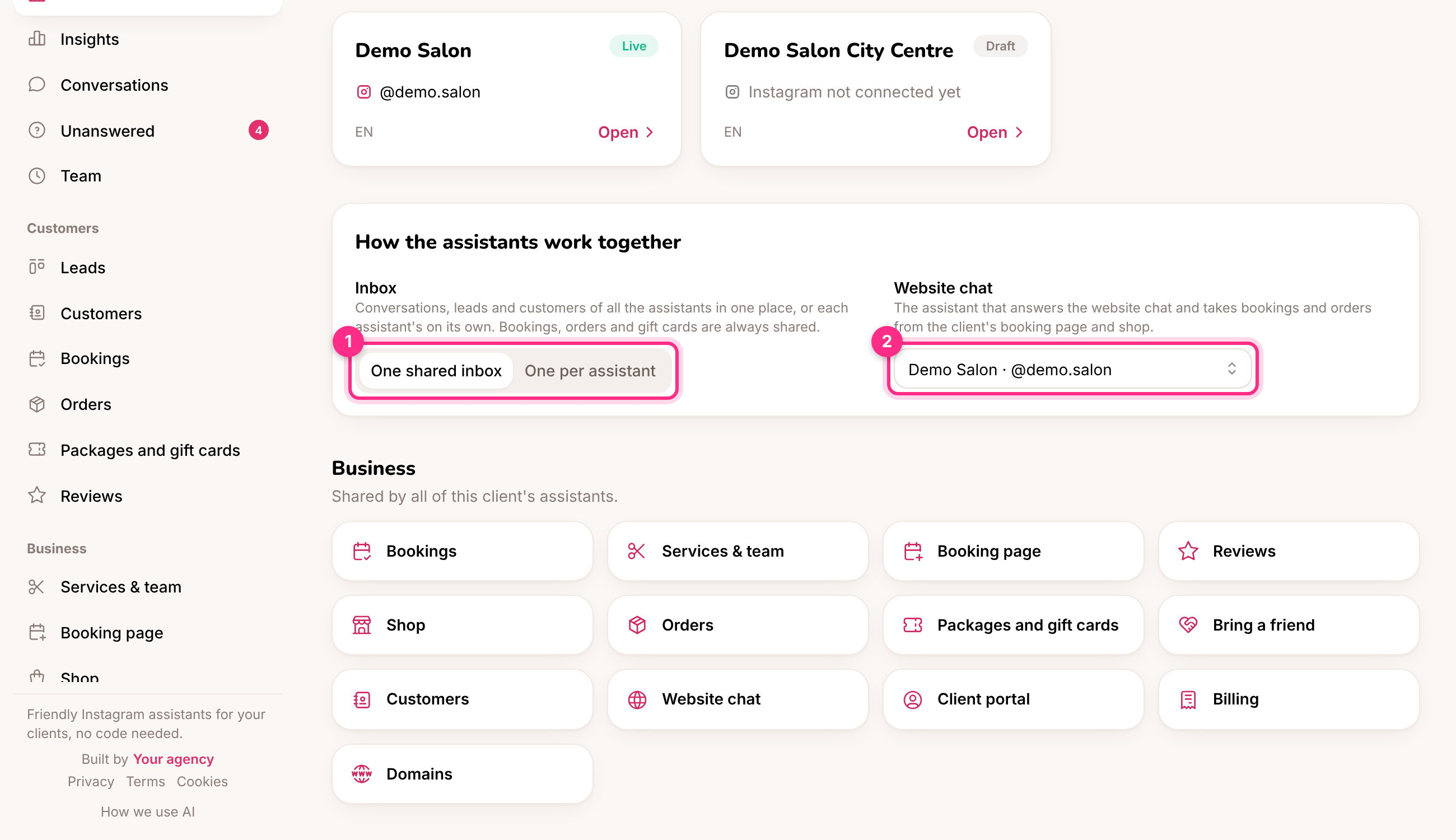
One shared inbox or one per assistant (1), and which assistant answers the website chat (2)
- Inbox (1): with One shared inbox (the default), Conversations, Leads and Customers show the people who wrote to any of the client’s assistants, and a badge says which assistant each person wrote to. Your reply goes out through that assistant. Choose One per assistant when the accounts are run by different people.
- Website chat (2): the assistant that answers the website chat and takes the bookings and orders made on the client’s booking page and shop. It’s the first assistant until you choose another.
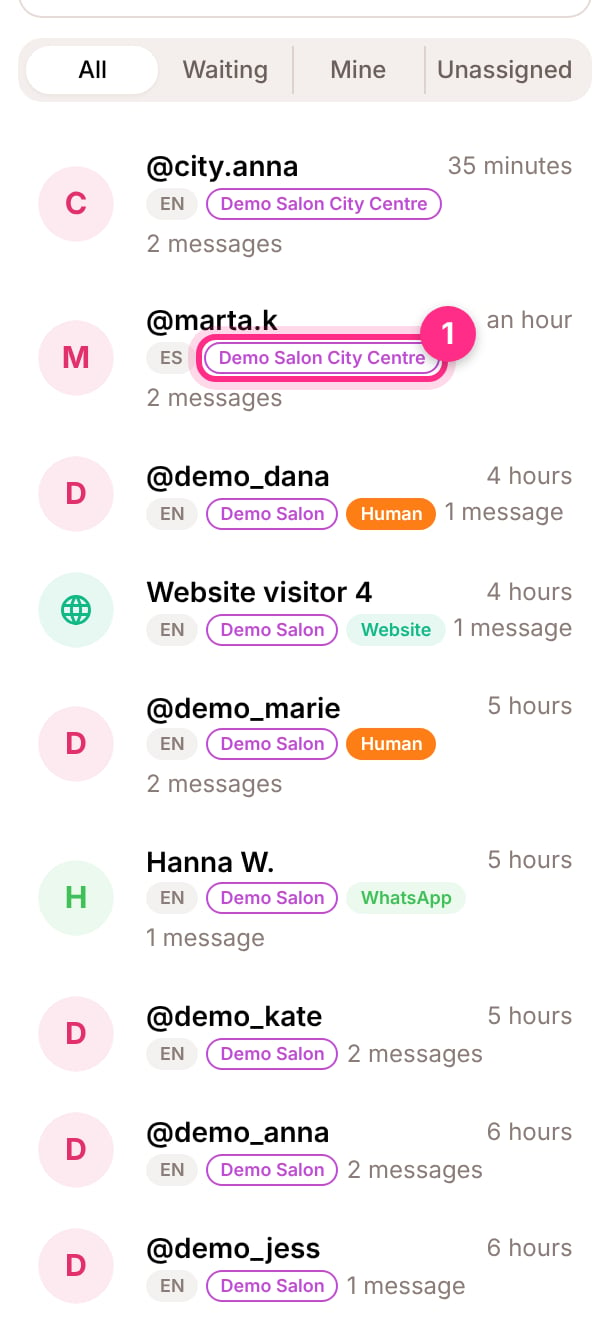
A shared inbox: the badge shows which assistant the person wrote to (1)
Bringing back an older version of one assistant in History restores its own set-up only. The business settings it shares with the other assistants stay as they are.
Inside a client
When you open an assistant, the menu on the left shows the client and the assistant you’re working on.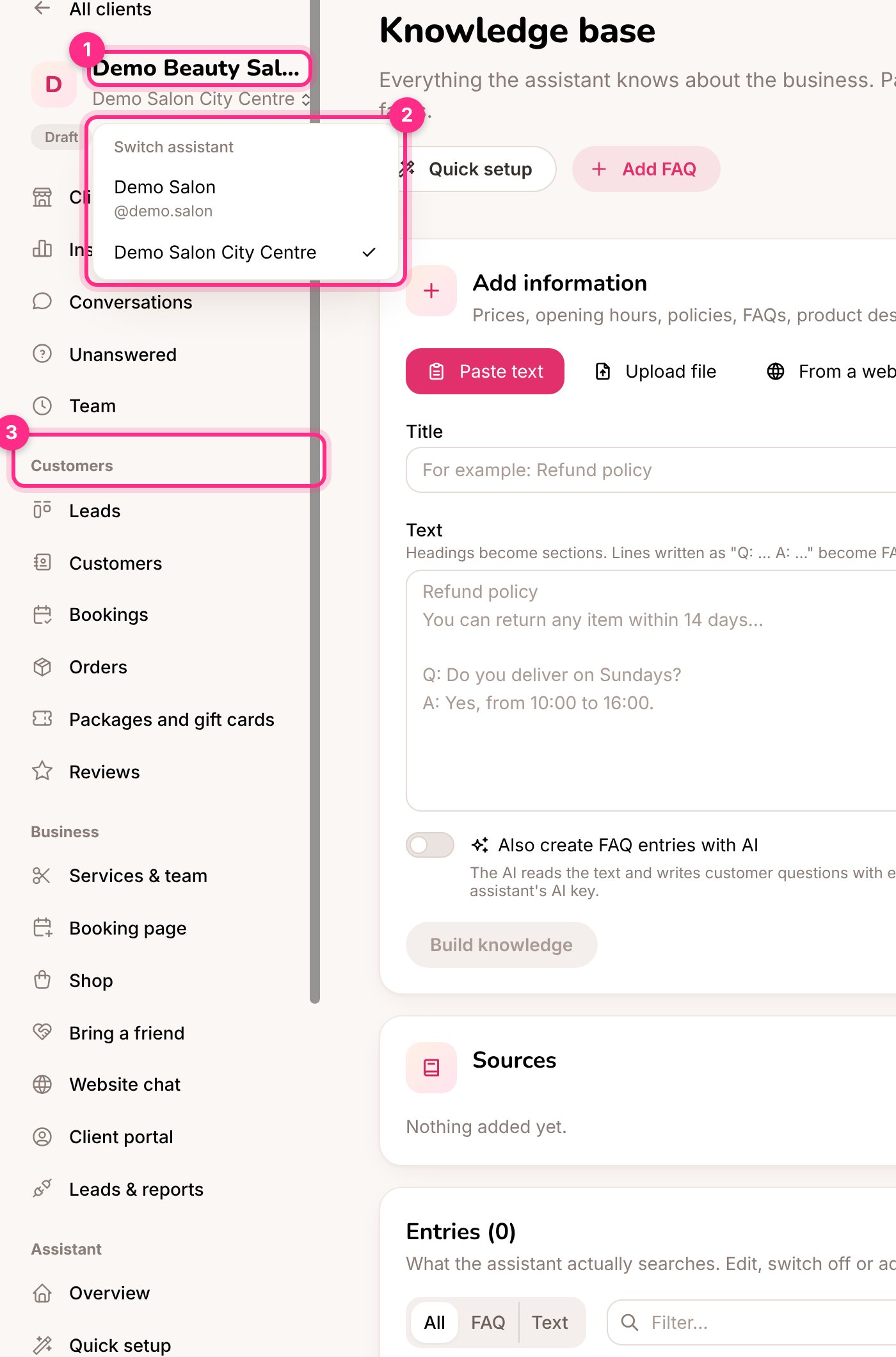
The client's name (1), switching to its other assistant (2), the menu groups (3)
- Click the client’s name (1) to go back to the client’s page.
- A client with more than one assistant gets a switch under its name (2). Picking another assistant keeps you on the same page, so you can compare their knowledge or rules side by side.
- The menu is grouped (3):
What happened to the bots I had before?
What happened to the bots I had before?
Each one became a client with one assistant, named after its business. Nothing else changed: the same knowledge, rules, conversations and settings.
Does a second assistant count towards the agency's limit?
Does a second assistant count towards the agency's limit?
Yes. The limit counts assistants, not clients.
Can I remove a client?
Can I remove a client?
Deleting a client’s last assistant removes the client too. A client you made without an assistant can be removed by an AI agent with delete_client.