

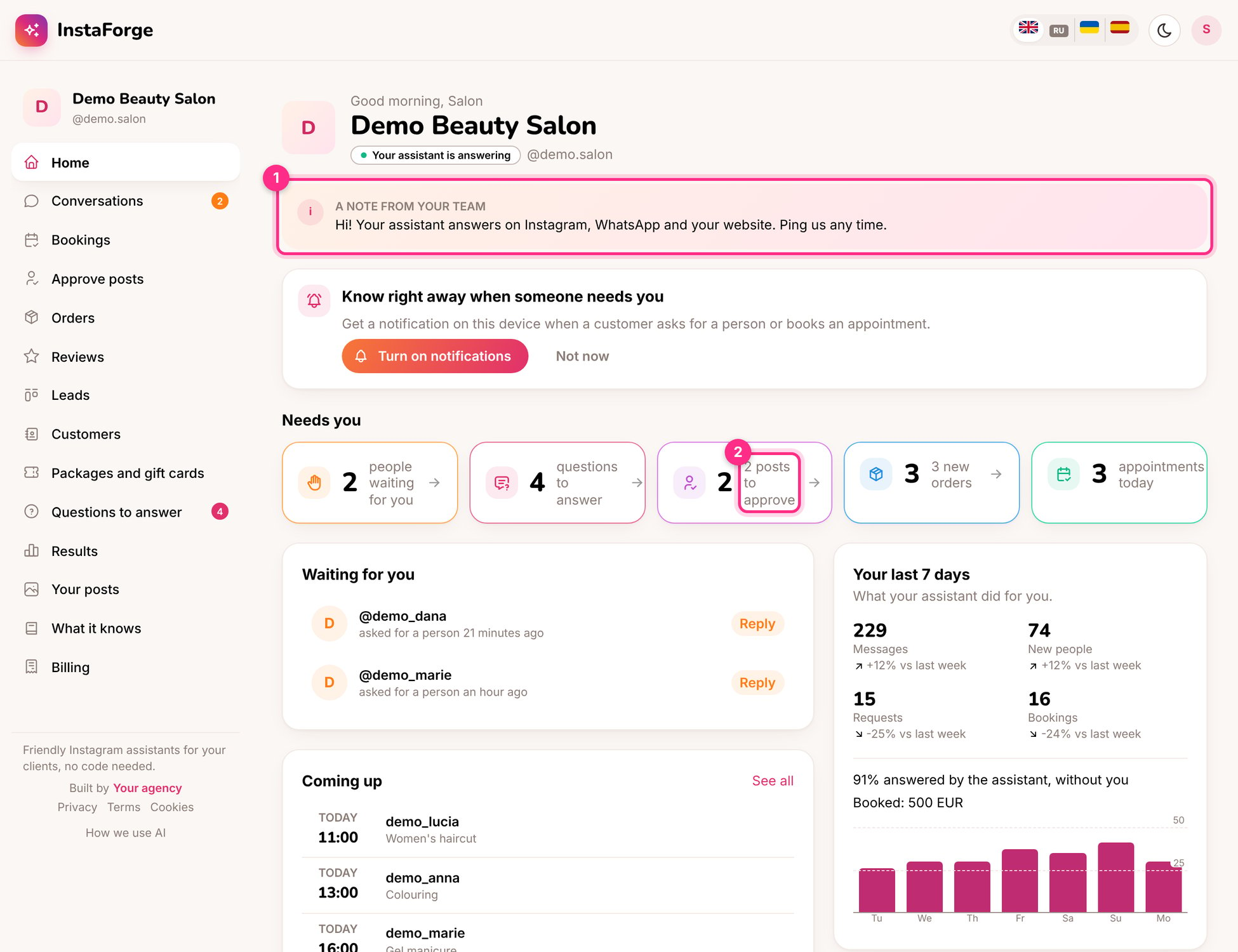
The business owner's home page: a note from the agency (1) and posts to approve (2)
For business owners
Needs you
People waiting for you, questions to answer, posts to approve, new orders, today’s appointments.
Conversations
Read every chat and reply yourself. Switch on “I’m handling this chat” to pause the assistant.
Bookings
See and cancel appointments, mark no-shows.
Questions to answer
Answer what the assistant didn’t know. Your answer teaches it.
Approve posts
Approve scheduled posts or ask for changes.
Results
Numbers and charts: people who wrote, bookings, reviews, sales.
Something out of date?
Use Something out of date? to tell the agency what changed (“From November we’re closed on Mondays”). They update the assistant and you’re told when it’s done.Get notifications
Turn on notifications on your phone from the home page, so you know when a customer asks for a person or books.Find this guide again
The lifebuoy button at the top of your portal opens this page whenever you need it.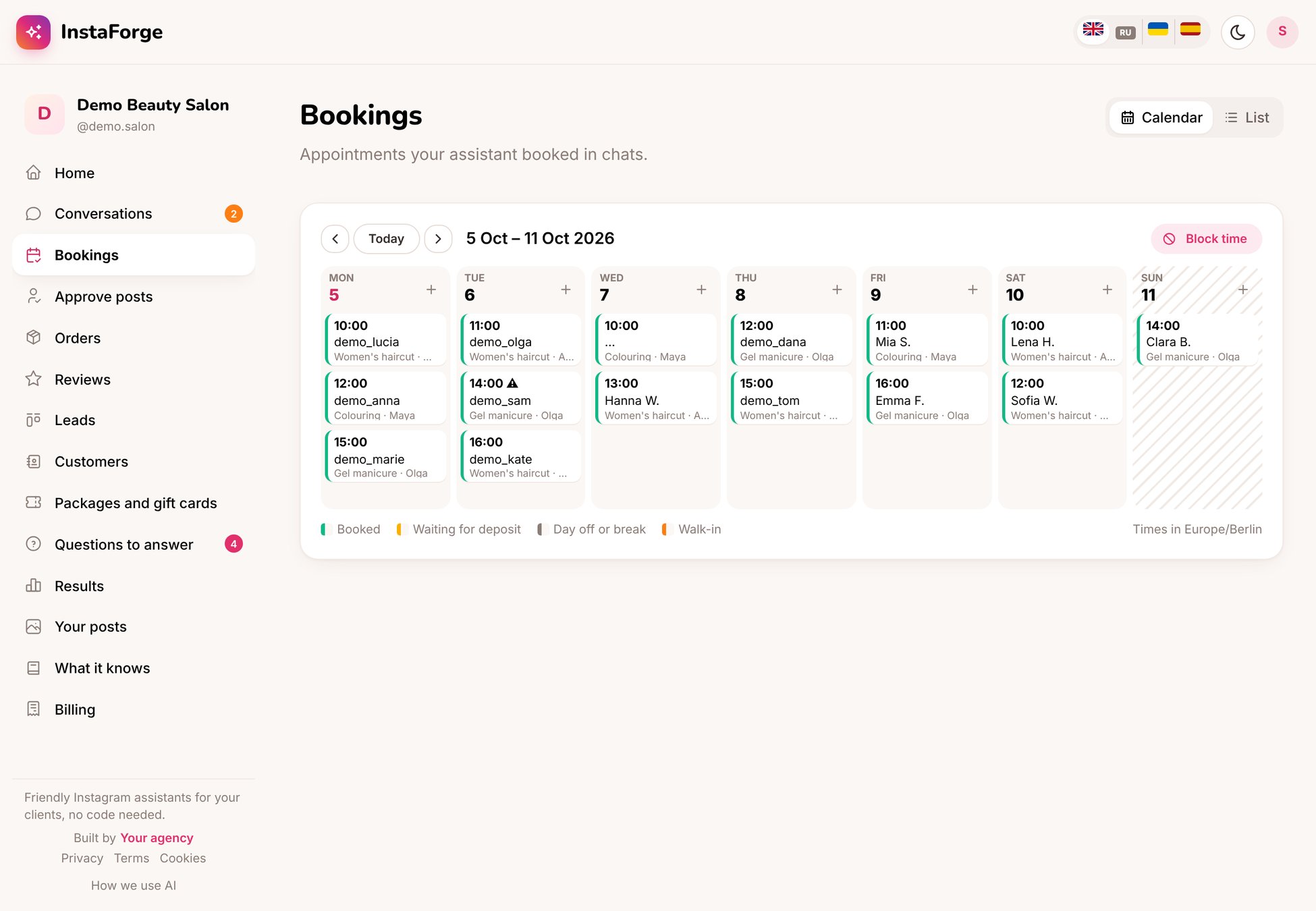
Bookings in the portal
For the agency: set up the portal
Open the bot’s Client portal page.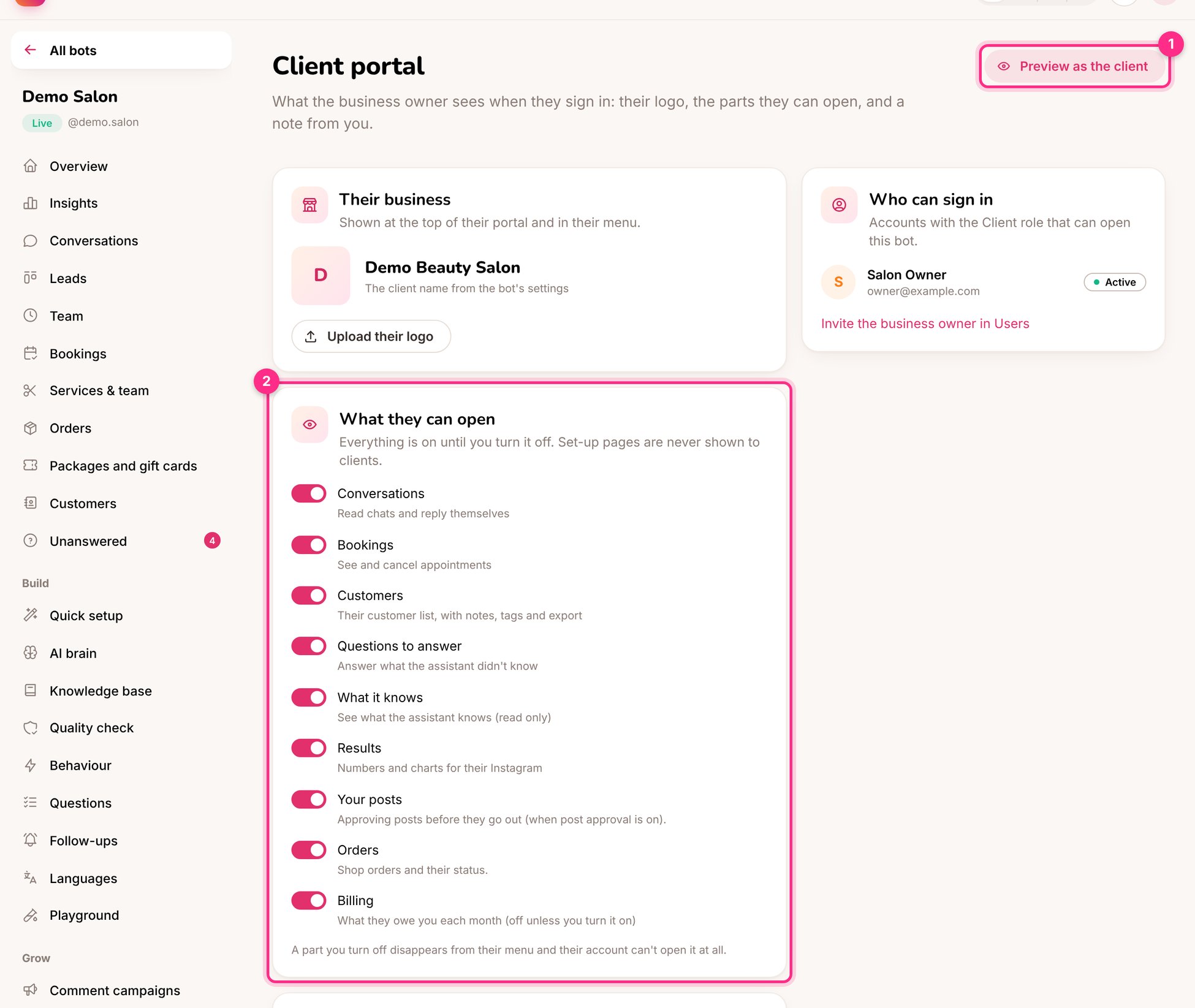
Client portal settings: preview as the client (1) and what they can open (2)
1
Upload the client's logo
Shown at the top of their portal.
2
Choose what they can open (2)
Conversations, bookings, customers, questions to answer, what the assistant knows, results, posts, orders and billing. A part you turn off disappears from their menu and can’t be opened at all.
3
Write a note to the client
A short message at the top of their home page: tips, news, or what you’re working on for them.
4
Give them their own address (optional)
On the Domains page, add an address like portal.their-site.com so the portal, website chat, booking page and shop carry their name. See Custom domains.
5
Invite them
In Users, add the owner with the Client role and only their bot. Then click Preview as the client (1) to see exactly what they see.