> ## Documentation Index
> Fetch the complete documentation index at: https://docs.instaforge.app/llms.txt
> Use this file to discover all available pages before exploring further.
# Plans: agencies paying the platform
> Set prices for agencies, give them a free trial, take payment with Stripe and pause agencies that don't pay.
The platform owner can charge agencies for using the platform. You make a few **plans** (a price, an assistant limit and the features included), put each agency on one, and the agency's admins subscribe with a card on a Stripe page. The money goes straight to your Stripe account.
Agencies don't sign up on their own: you [add each agency](/running-the-agency/agencies) and choose its plan.
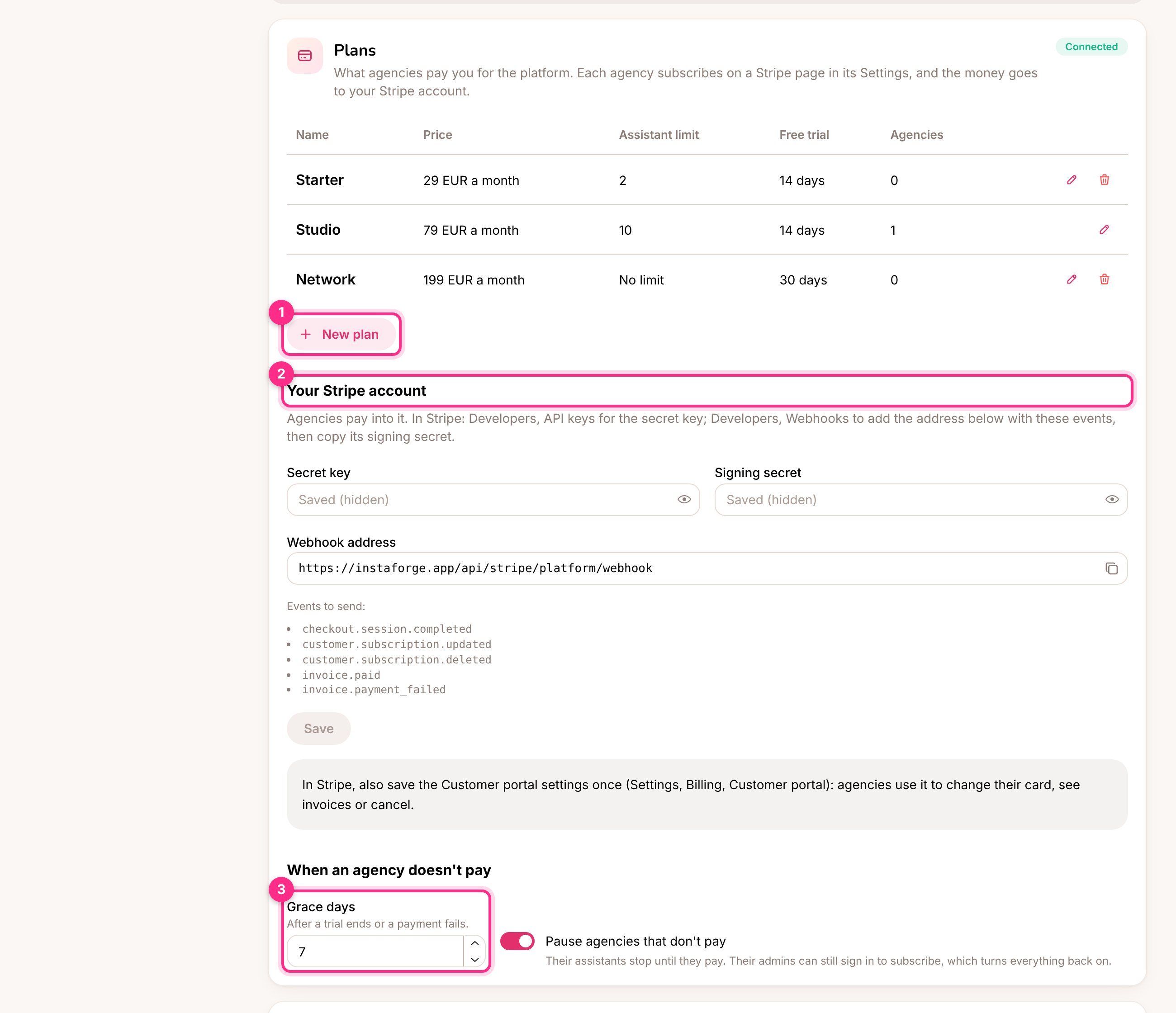 ## Connect your Stripe account
This is done once. It's your own Stripe account, separate from the Stripe accounts your agencies' clients use for [online payments](/grow-sales/online-payments).
In Stripe, open **Developers → API keys** and copy the **Secret key** (it starts with `sk_live_`, or `sk_test_` to try it out first). Paste it into **Secret key** in the Plans section (2).
In Stripe, open **Developers → Webhooks → Add endpoint**. Paste the **Webhook address** shown in the Plans section and select the five events listed under it. Save, then copy the endpoint's **Signing secret** (`whsec_...`) into **Signing secret** and click **Save**.
In Stripe, open **Settings → Billing → Customer portal** and save it once. Agencies use it to change their card, download invoices or cancel.
The section shows **Connected** when both are saved, and **Test mode** while you use a test key.
## Make a plan
Click **New plan** (1) and fill in:
| Field | What it does |
| - | - |
| Name | What the agency sees, for example Starter or Studio |
| Price, currency, monthly or yearly | What Stripe charges. A price of 0 makes a free plan with nothing to pay |
| Assistant limit | How many assistants the agency may have. Leave empty for no limit |
| Free trial | Days before the first payment. 0 asks for payment straight away |
| Features | The same features you can [turn off for an agency](/running-the-agency/agencies#assistant-limit-and-features) |
| Offered to new agencies | Switch off to stop offering a plan; agencies already on it keep it |
A new assistant limit or features apply to every agency on the plan straight away. A new price applies to new subscriptions. A plan can be deleted only when no agency is on it.
## Put an agency on a plan
When you add or edit an agency, pick its **Plan**. The trial starts at once, and the plan's assistant limit and features replace the agency's own. Type a number in **Free trial** to give this agency a different trial, or a new trial later.
Choose **No plan** for an agency you don't charge, or one you bill by hand. The Platform page shows each agency's plan and where it stands: **Trial**, **Paid**, **Waiting for payment**, **Payment failed** or **Cancelled**.
## What the agency sees
The agency's admins find their plan in **Settings → Plan**. They click **Subscribe** (1), pay on Stripe's own page, and come back to the platform. During a trial the first charge is taken when the trial ends, so subscribing early costs nothing extra.
## Connect your Stripe account
This is done once. It's your own Stripe account, separate from the Stripe accounts your agencies' clients use for [online payments](/grow-sales/online-payments).
In Stripe, open **Developers → API keys** and copy the **Secret key** (it starts with `sk_live_`, or `sk_test_` to try it out first). Paste it into **Secret key** in the Plans section (2).
In Stripe, open **Developers → Webhooks → Add endpoint**. Paste the **Webhook address** shown in the Plans section and select the five events listed under it. Save, then copy the endpoint's **Signing secret** (`whsec_...`) into **Signing secret** and click **Save**.
In Stripe, open **Settings → Billing → Customer portal** and save it once. Agencies use it to change their card, download invoices or cancel.
The section shows **Connected** when both are saved, and **Test mode** while you use a test key.
## Make a plan
Click **New plan** (1) and fill in:
| Field | What it does |
| - | - |
| Name | What the agency sees, for example Starter or Studio |
| Price, currency, monthly or yearly | What Stripe charges. A price of 0 makes a free plan with nothing to pay |
| Assistant limit | How many assistants the agency may have. Leave empty for no limit |
| Free trial | Days before the first payment. 0 asks for payment straight away |
| Features | The same features you can [turn off for an agency](/running-the-agency/agencies#assistant-limit-and-features) |
| Offered to new agencies | Switch off to stop offering a plan; agencies already on it keep it |
A new assistant limit or features apply to every agency on the plan straight away. A new price applies to new subscriptions. A plan can be deleted only when no agency is on it.
## Put an agency on a plan
When you add or edit an agency, pick its **Plan**. The trial starts at once, and the plan's assistant limit and features replace the agency's own. Type a number in **Free trial** to give this agency a different trial, or a new trial later.
Choose **No plan** for an agency you don't charge, or one you bill by hand. The Platform page shows each agency's plan and where it stands: **Trial**, **Paid**, **Waiting for payment**, **Payment failed** or **Cancelled**.
## What the agency sees
The agency's admins find their plan in **Settings → Plan**. They click **Subscribe** (1), pay on Stripe's own page, and come back to the platform. During a trial the first charge is taken when the trial ends, so subscribing early costs nothing extra.
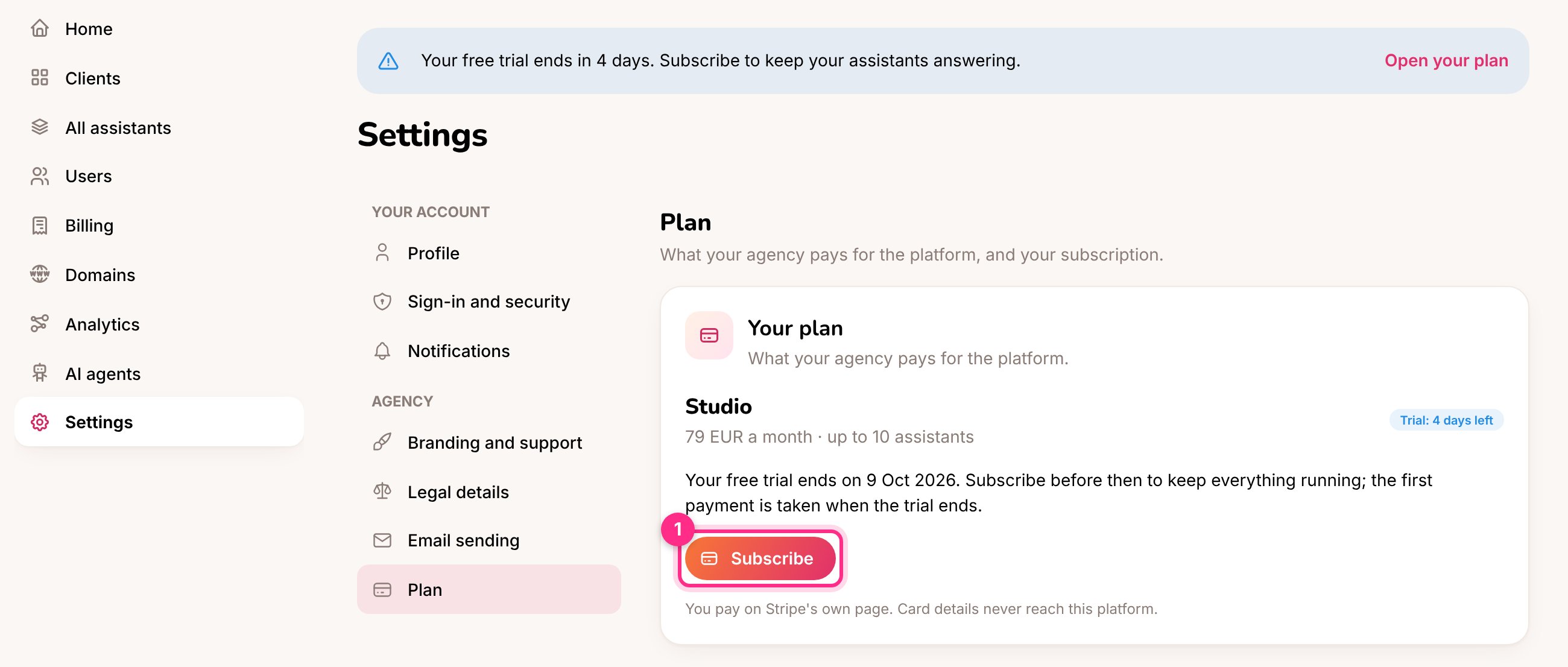 * From five days before the trial ends, and whenever a payment is due, admins see a banner at the top of every page. They also get an email three days before the trial ends and when a payment fails.
* Once subscribed, **Manage subscription** opens Stripe's customer portal to change the card, see invoices or cancel.
* Other people in the agency (managers, agents, business owners) never see the plan.
## When an agency doesn't pay
An agency is late when its trial ends without a subscription, a payment fails or the subscription is cancelled. It then gets the number of **Grace days** you set (3). You get an alert when a payment fails, a subscription is cancelled or paid, and when an agency is paused.
If **Pause agencies that don't pay** is on, the agency is paused when the grace days run out:
* its assistants stop answering and its public pages close,
* only its admins can sign in, and they see just their plan with a way to pay,
* nothing is deleted.
As soon as they pay, everything turns back on by itself. With auto-pause off, nothing is paused and you decide yourself.
A pause you made by hand on the Platform page stays until you resume the agency, even if the agency pays.
Nobody on the platform. Agencies pay on Stripe's page, and InstaForge only receives Stripe's signed messages about the subscription.
Yes, the pause and play buttons on the Platform page work as before.
Yes. Connected as the platform owner, an [AI agent](/running-the-agency/ai-agents) can list and save plans and put agencies on them.
This documentation is built and hosted on [Mintlify](https://mintlify.com), a developer documentation platform.
* From five days before the trial ends, and whenever a payment is due, admins see a banner at the top of every page. They also get an email three days before the trial ends and when a payment fails.
* Once subscribed, **Manage subscription** opens Stripe's customer portal to change the card, see invoices or cancel.
* Other people in the agency (managers, agents, business owners) never see the plan.
## When an agency doesn't pay
An agency is late when its trial ends without a subscription, a payment fails or the subscription is cancelled. It then gets the number of **Grace days** you set (3). You get an alert when a payment fails, a subscription is cancelled or paid, and when an agency is paused.
If **Pause agencies that don't pay** is on, the agency is paused when the grace days run out:
* its assistants stop answering and its public pages close,
* only its admins can sign in, and they see just their plan with a way to pay,
* nothing is deleted.
As soon as they pay, everything turns back on by itself. With auto-pause off, nothing is paused and you decide yourself.
A pause you made by hand on the Platform page stays until you resume the agency, even if the agency pays.
Nobody on the platform. Agencies pay on Stripe's page, and InstaForge only receives Stripe's signed messages about the subscription.
Yes, the pause and play buttons on the Platform page work as before.
Yes. Connected as the platform owner, an [AI agent](/running-the-agency/ai-agents) can list and save plans and put agencies on them.
This documentation is built and hosted on [Mintlify](https://mintlify.com), a developer documentation platform.