> ## Documentation Index
> Fetch the complete documentation index at: https://docs.instaforge.app/llms.txt
> Use this file to discover all available pages before exploring further.
# Scheduler and post approval
> Plan posts, carousels, reels and stories, and let the business owner approve them first.
The **Post scheduler** publishes posts, carousels, reels and stories on their own at the time you choose. You see them in a calendar or as a list.
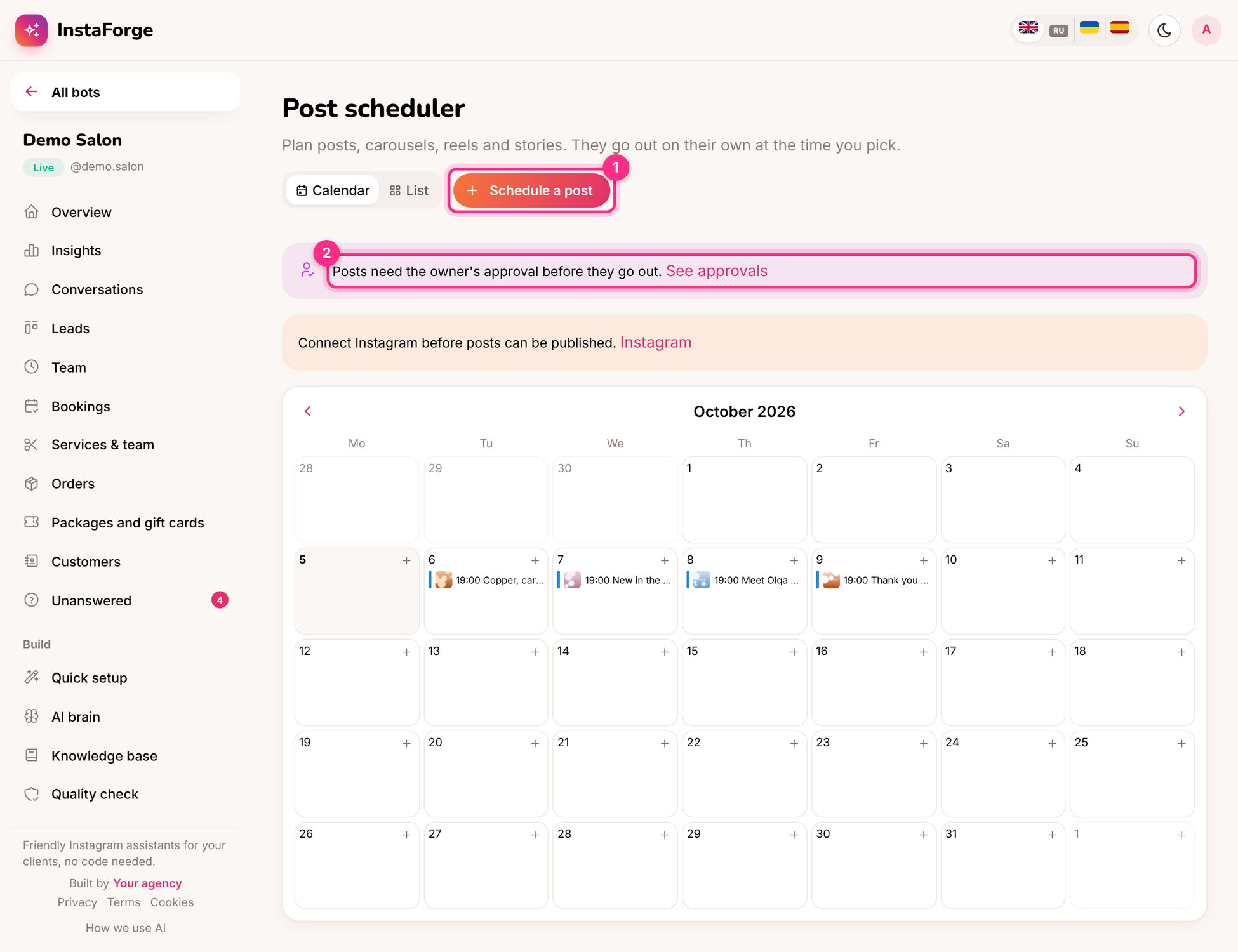 ## Schedule a post
Choose the type: photo, carousel, reel or story.
Upload photos or a video. **Write caption** drafts one in the business's tone, with hashtags.
In the business's time zone. The [content planner](/content/content-planner) suggests the times that worked best.
The Instagram account must be connected for posts to go out. Until then you can still plan and get them approved.
## Post approval
When the business owner wants to see posts before they go out, turn on **Posts need the owner's approval** on the **Post approval** page.
## Schedule a post
Choose the type: photo, carousel, reel or story.
Upload photos or a video. **Write caption** drafts one in the business's tone, with hashtags.
In the business's time zone. The [content planner](/content/content-planner) suggests the times that worked best.
The Instagram account must be connected for posts to go out. Until then you can still plan and get them approved.
## Post approval
When the business owner wants to see posts before they go out, turn on **Posts need the owner's approval** on the **Post approval** page.
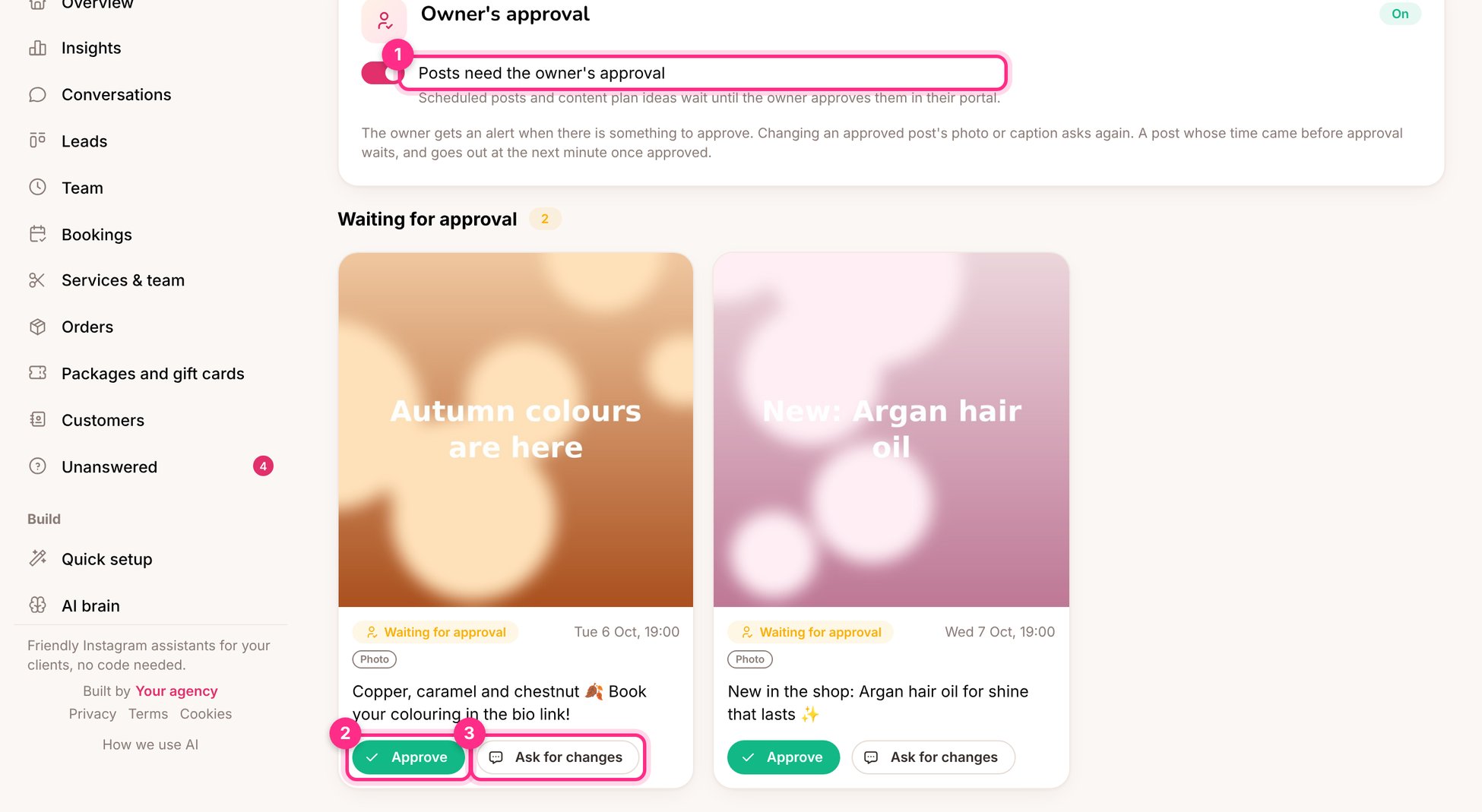 It's marked **Waiting for approval**.
They open **Approve posts** in their portal and click **Approve**, or **Ask for changes** with a note ("Please use the new photo of Olga").
You get an alert either way. Change the post and it goes back for approval.
A post that isn't approved by its time waits, and goes out at the next minute after it's approved. Changing an approved post's photo or caption asks again.
Schedule a week of posts in one go and send them for approval on Monday. Owners like approving in one sitting rather than one post at a time.
This documentation is built and hosted on [Mintlify](https://mintlify.com), a developer documentation platform.
It's marked **Waiting for approval**.
They open **Approve posts** in their portal and click **Approve**, or **Ask for changes** with a note ("Please use the new photo of Olga").
You get an alert either way. Change the post and it goes back for approval.
A post that isn't approved by its time waits, and goes out at the next minute after it's approved. Changing an approved post's photo or caption asks again.
Schedule a week of posts in one go and send them for approval on Monday. Owners like approving in one sitting rather than one post at a time.
This documentation is built and hosted on [Mintlify](https://mintlify.com), a developer documentation platform.