> ## Documentation Index
> Fetch the complete documentation index at: https://docs.instaforge.app/llms.txt
> Use this file to discover all available pages before exploring further.
# Languages
> Answer customers in their own language, and fill in the assistant's texts in every language automatically.
The assistant answers each person in the language they write in: English, Russian, Ukrainian or Spanish. Its fixed texts (the welcome message, starter questions, follow-ups, booking page, shop, gift cards and so on) can be written in each language too.
## Write once, translate the rest
You don't have to write every text four times. Write it in one language and let the assistant's AI fill in the others.
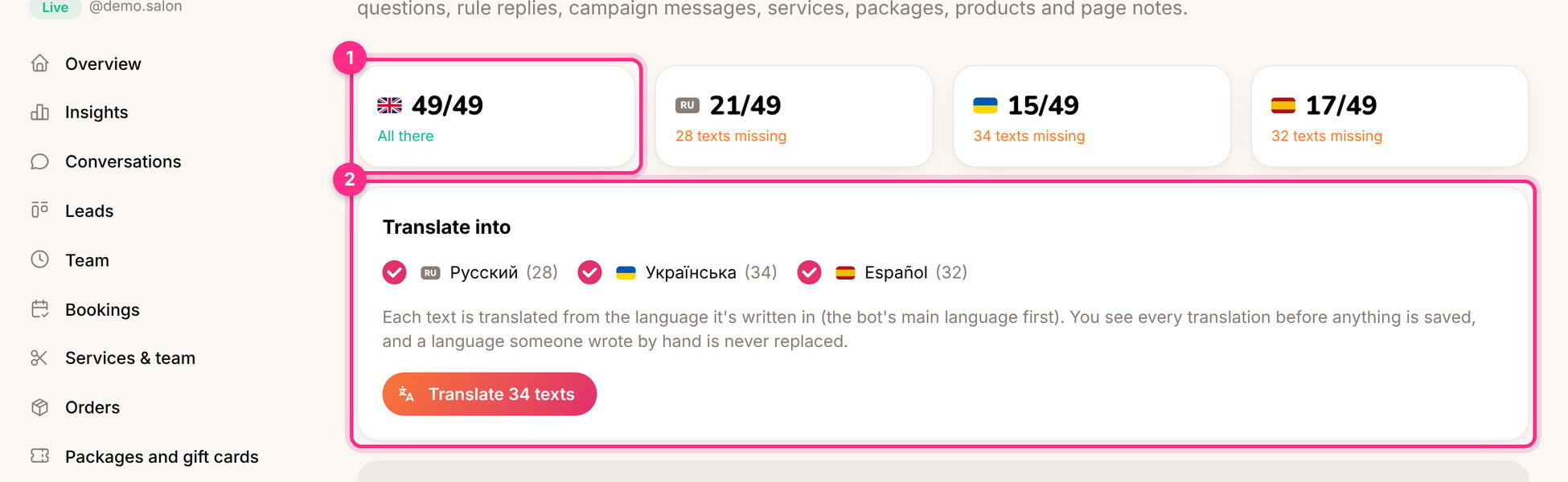 The cards (1) show how many of the assistant's texts exist in each language.
Tick the languages and click **Translate**. Each text is translated from the language it's written in.
Every translation is shown next to the original. Fix anything you like, then click **Save translations**. Only empty languages are filled; nothing you wrote by hand is ever replaced.
Next to any text field with language flags there's a **translate** button. It fills in the empty languages for that one field.
## Good to know
* Translations use the assistant's own AI and are counted in its AI costs.
* Placeholders such as `{{username}}` and links are kept as they are.
* With [Draft and publish](/build-the-assistant/draft-and-publish) on, translations are saved to the draft.
* The inbox can show any conversation in your language: switch on **Translate into my language** above the chat.
Ask a native speaker to read the welcome message and the booking page once. Those are the texts every new customer sees.
This documentation is built and hosted on [Mintlify](https://mintlify.com), a developer documentation platform.
The cards (1) show how many of the assistant's texts exist in each language.
Tick the languages and click **Translate**. Each text is translated from the language it's written in.
Every translation is shown next to the original. Fix anything you like, then click **Save translations**. Only empty languages are filled; nothing you wrote by hand is ever replaced.
Next to any text field with language flags there's a **translate** button. It fills in the empty languages for that one field.
## Good to know
* Translations use the assistant's own AI and are counted in its AI costs.
* Placeholders such as `{{username}}` and links are kept as they are.
* With [Draft and publish](/build-the-assistant/draft-and-publish) on, translations are saved to the draft.
* The inbox can show any conversation in your language: switch on **Translate into my language** above the chat.
Ask a native speaker to read the welcome message and the booking page once. Those are the texts every new customer sees.
This documentation is built and hosted on [Mintlify](https://mintlify.com), a developer documentation platform.